This page will guide you through the functionalities of the ezCheck app. In each scree there is a text explaining how to use the features of that part of the app. You can roll the mover over the screen and get help for each part. The screens are approximately in order of use simulating a common use of the app. To get ezCheck, click in the following link: |
||||||||
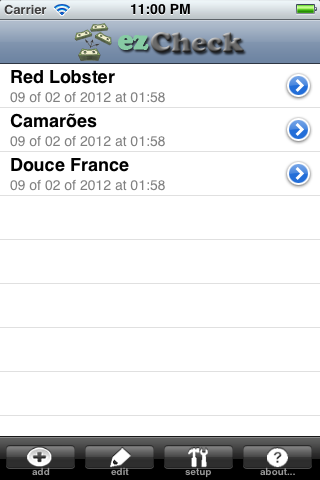 |
Here you can manage your accounts (bills that you have stored in your device). To add a new check, click in the 'add' button in the bottom bar. You will be asked for a name for that account and you can put the name of the restaurant or place that you are going to. The app will store the date you are creating that account. To start using that account, click in the blue disclosure button besides each account name. The rest of the buttons bellow allow you to go to setup and about screen or edit the account screen. In the edit mode, you can delete any account. Please notice that when you delete an account you delete only the orders that are associated with it, people and items will keep stored in the device. | |||||||
| In this screen you will manage a specific account or bill. Initially the screen will be empty, and you can add people by clicking in the 'add' button in the bottom bar. Each person has a blue disclosure button that you can click to order some item for that person. If you want to order one item for more than one people, click in the name of each person and click on the 'order' button (bottom bar). If you click 'edit' to erase an item or person, notice that if you erase an item (or a person with an item) that has being shared with others, those items will be erased from everyone also. Holding for 2 seconds at a specific line will allow you to change the value for that item (even for the ones that are shared). | 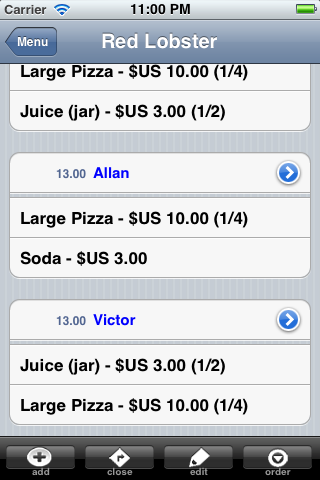 |
|||||||
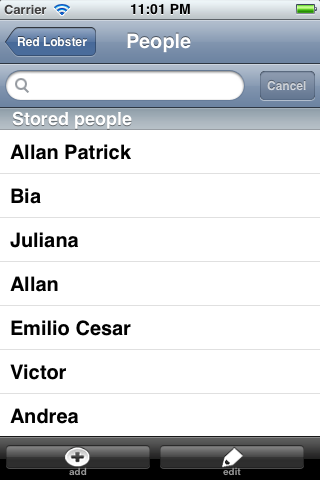 |
Here you can manage the people that you have stored in your device. Those names will be stored and can be used in any account you create. To add a new person, just use the add button and give a name. Be careful when erasing people because they might be present i one or more accounts and will be deleted from all of them. To bring one person to the account you're in, just click in his/her name. | |||||||
| Here you can manage the items in your device. As in the person screen you can add or delete items at any time (just remember the same thing about deleting people). Either in the items or people screen (actually even in the account menu) you can edit the description (or name in case of people) by holding down a click in the name or description. A box will appear with the name or description and you can start editing. To include one item into the person you chooses, just click in the item. | 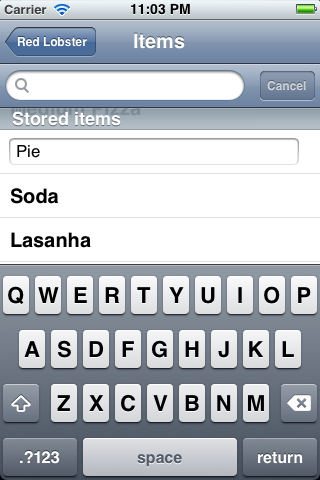 |
|||||||
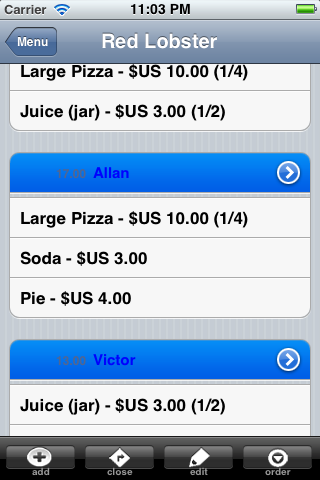 |
Here we demonstrate how can you pick one item (say a pizza) for more than one person (say you and your partner). Just click in each name that will share the item and click in the 'order' button. Notice that you can have several shares at the same time with more than one group. For instance you can share a pie with your girl/boy-friend and share a large lasagna with every one. The app will take care or everything for everyone in the final bill division. | |||||||
| Here is an example of deleting items or people in an account. Just remember that when you delete an item that were shared, all the parts are deleted. If you delete a person that have shared items they will recursively be delete too. When you delete an item or person they will be excluded only for this account, but will remain in the device memory ad you can use them later. | 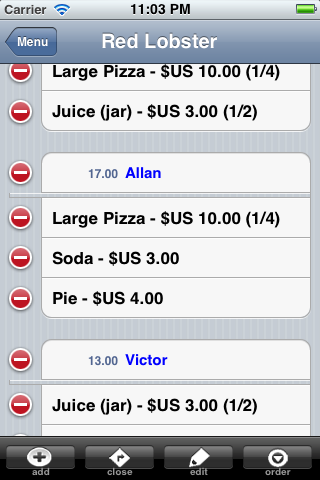 |
|||||||
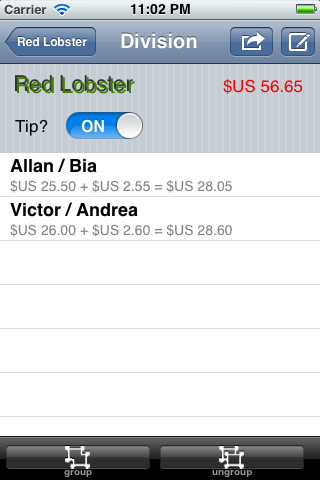 |
This is where the magic happens. The checkout screen shows the total bill for an account. The list shows the people that participate in the bill and, at first, everyone is separated. The screen shows the total for each person and you can choose to include tip (that will be distributed with everyone). If you wish to share a bill with someone (say your girl/boy-friend) you can group people by selecting each one and click in the 'group' people. If you change your mind you can start over by ungrouping everyone. | |||||||
| This is the setup screen. Here you can change the amount of tip you will give. Also you can visit this page from the device or leave a feedback in itunes. | 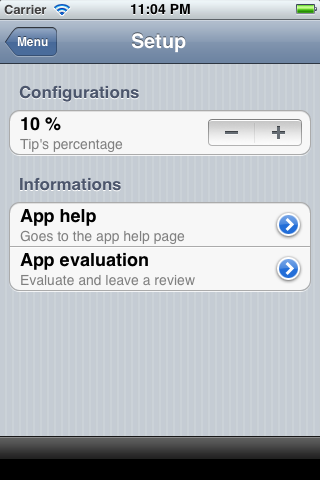 |
|||||||
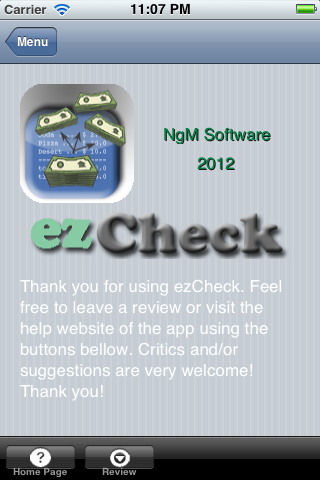 |
This is the about screen. As in the setup you can visit this page from the device or leave a feedback in itunes. Please feel free to leave a feedback with critics and/or suggestions. They will be very welcome to improve the future versions! Thank you for using ezCheck. We hope it easy your checks a lot!! PS.: There is a little easter egg in this screen, can you find it? %-) |
|||||||